

Consent Logs
Consent Pro automatically stores every consent interaction made by your visitors. This guide explains how the consent logs system works, how to browse records, and how to export them.
How Consents Are Stored
Every time a visitor interacts with a consent banner — whether they accept, reject, or adjust their privacy choices — Consent Pro captures and stores that interaction as an immutable consent record.
Records are stored in a Cloudflare R2 Data Catalog, a scalable object storage system backed by Cloudflare's global infrastructure — not on Finsweet's own servers. Each record is indexed and queryable, ensuring fast retrieval across large volumes of consent data.
Consent records are retained in Cloudflare R2 for 5 years from the date of the interaction, after which they are automatically deleted. This retention period covers the full dataset, including records older than the 7-day window shown in the Records tab — those remain retrievable via CSV export.
Viewing Consent Records
To view your consent records, open the Consent Pro app and navigate to the Logs tab, then select Records.
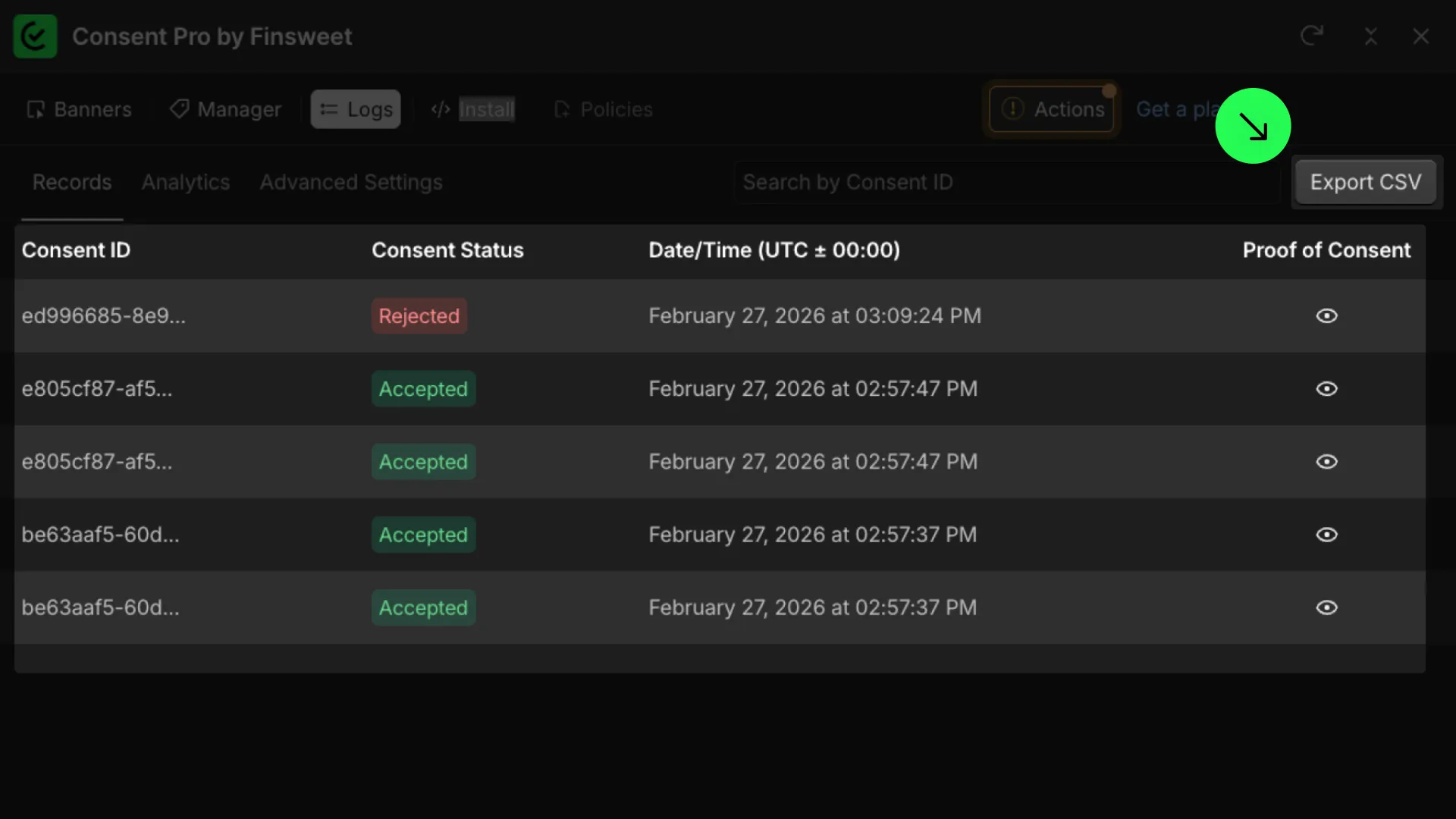
The records table displays the most recent visitor interactions and includes the following columns:
| Column | Description |
|---|---|
| Consent ID | A unique UUID assigned to each consent interaction. |
| Consent Status | The overall consent outcome: Accepted (all categories enabled), Rejected (all categories disabled), or Partial Consent (mixed choices). |
| Date/Time (UTC ± 00:00) | The timestamp of the interaction in UTC. |
| Proof of Consent | An eye icon that opens the full Proof of Consent details for that record. |
The Records tab shows only records from the past 7 days, with up to 100 records displayed at a time. If more records exist, a notice at the bottom of the table indicates how many additional records are available and can be retrieved via the CSV export.
The Analytics tab shows consent data from the last 7 days by default. You can set a custom date range to view analytics for a different period.
Searching Records
Use the Search by Consent ID input field to filter records by a specific Consent ID. The search updates the list in real time as you type.
Proof of Consent
Click the eye icon (👁) in the Proof of Consent column to open the full details of a consent record. This modal shows:
Consent Information
| Field | Description |
|---|---|
| Consent ID | Full UUID of the consent record. |
| Timestamp | Date and time of the interaction in UTC. |
| Domain | The website domain where the consent was recorded. |
| Page URL | The specific page the visitor was on when they consented (if available). |
| Region | The visitor's detected geographic region (if available). |
| Status | Accepted, Rejected, or Partial Consent. |
Privacy Choices
Shows the individual category choices the visitor made:
- Essential — Always enabled; required for basic site functionality.
- Analytics — Whether analytics cookies were accepted or rejected.
- Marketing — Whether marketing cookies were accepted or rejected.
- Personalization — Whether personalization cookies were accepted or rejected.
You can send a full Proof of Consent report to your email address directly from this modal by clicking Send to my email.
Exporting Consent Records as CSV
For full access to your consent data — including records beyond the 100-item display limit — use the Export CSV feature.
How to Export
- Go to Logs → Records.
- Click the Export CSV button in the top-right area of the records table.
- In the Export Consent Records dialog, select a date range (From / To).
- Click Send to My Email.
The CSV export is processed asynchronously. You will receive an email with a download link within 10 minutes.
INFO
The export link sent by email is temporary and will expire after a limited time. Download the file promptly after receiving the email.
CSV File Columns
The exported CSV file includes the following columns for each consent record:
| Column | Description |
|---|---|
| Consent ID | Unique identifier for the consent record. |
| Action | The consent action taken: accept_all, reject_all, submit, or preferences. |
| Essential | Whether essential cookies were accepted (true/false). |
| Marketing | Whether marketing cookies were accepted (true/false). |
| Analytics | Whether analytics cookies were accepted (true/false). |
| Personalization | Whether personalization cookies were accepted (true/false). |
| Timestamp | Unix timestamp in milliseconds of the consent interaction. |
| Domain | Website domain where the consent was captured. |
| Page URL | Full URL of the page where the consent was captured. |
| Banner Text | The text shown on the banner at the time of consent. |
| Region | Visitor's detected geographic region. |
| User Agent | Browser user agent string of the visitor. |
| Runtime Version | Version of the Consent Pro runtime script in use. |
| Source | Source of the consent: banner, preferences, or api. |
| Providers | JSON array of consent providers associated with the record. |
| Trackers | JSON array of trackers associated with the record. |
TIP
The CSV export supports up to 10,000 records per export request. To export large datasets spanning long periods, use multiple exports with smaller, non-overlapping date ranges.
Data Retention & Audits
Consent records are kept for 5 years in Cloudflare R2 before being automatically purged.
If you require a longer retention period, you can keep an additional copy of your consent logs in your own external database. See Store Consents in Your Database for setup instructions.
Customers don't get direct access to the underlying storage system. If a consent record needs to be produced for a compliance audit, use the CSV export feature to download the complete set of stored consents for the relevant date range.